
The complete ClassKite guide for teachers: from your first class to live insight

This is the ClassKite Teacher's Guide, in full. It is the same guide, section for section and step for step, as the printable PDF and the tutorial videos — so a teacher reading, printing or watching is told the same thing in the same words.
Getting started
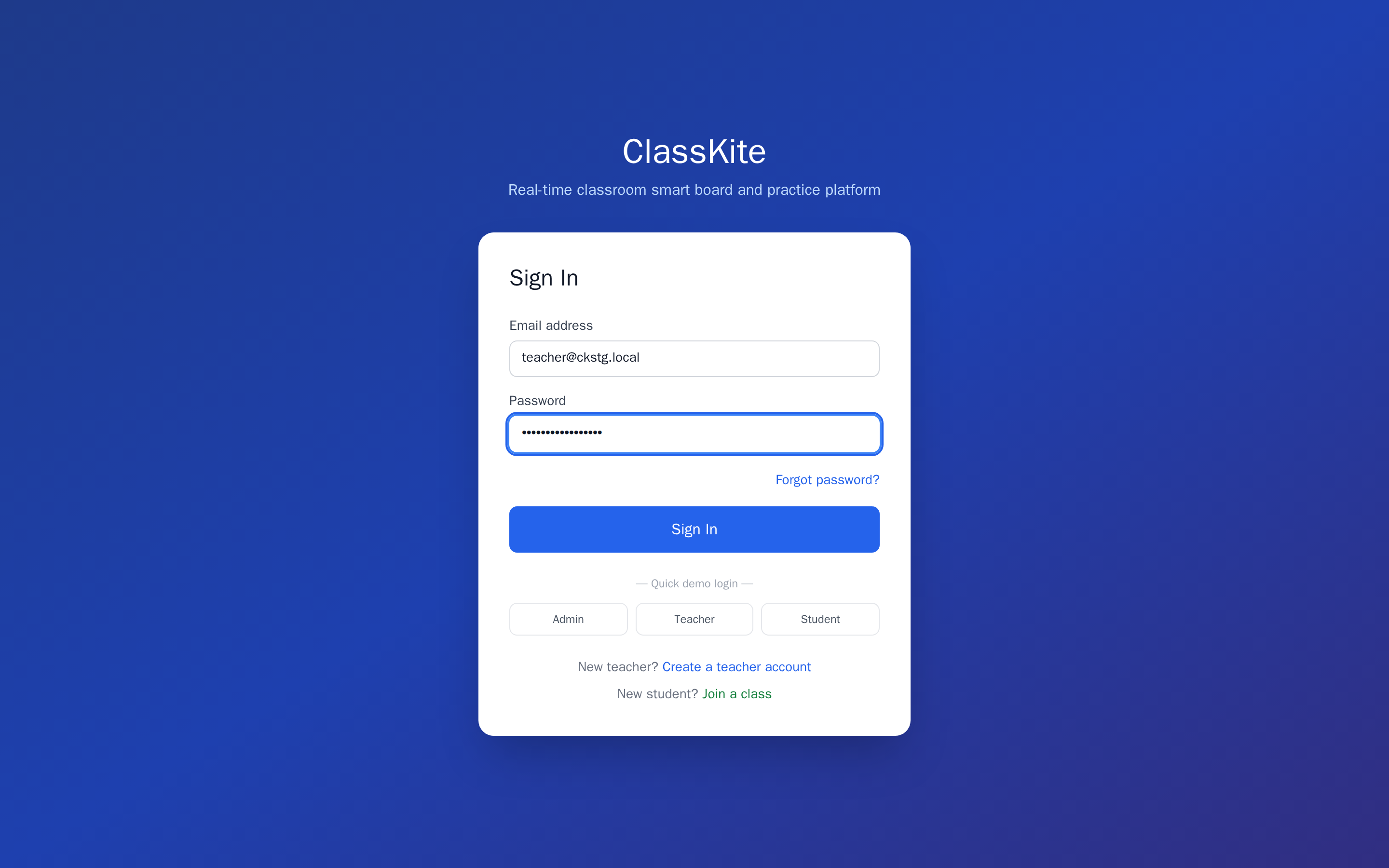
Everything in this guide happens in one place: sign in to your ClassKite teacher account in any modern browser - on a laptop, a smartboard, or an iPad. The four sections that follow are one teaching cycle, in the order you use them: you build a lesson's practice questions with an AI assistant, you explain one concept at a time on the Smart Board, you watch that concept's practice in the Live Session until every student is green, and you come back to the board for the next concept. Reports keeps the record afterwards.
Before you start: Create your class & bring students in
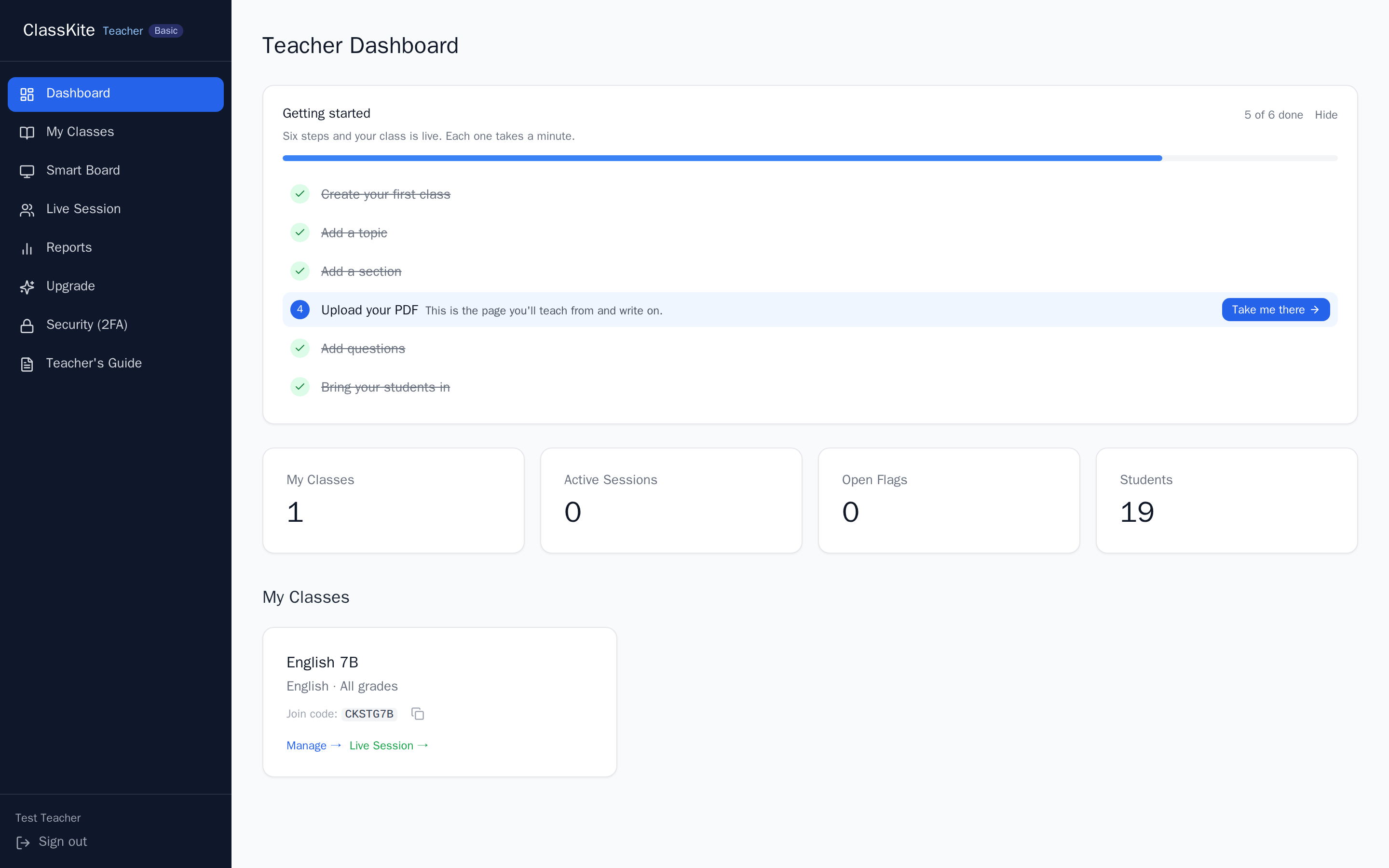
A class is the home for everything: its students, its topics and worksheets, its live sessions and its reports. Setting one up takes under a minute, and students join themselves with a short code - no email invitations to manage. Do this once per group you teach; the four sections that follow are the lesson itself.
1. Create the class
Open Classes in the left navigation. Type a class name and subject at the top of the class list and press Create Class. The new class appears in the list immediately - create one class per group you teach.
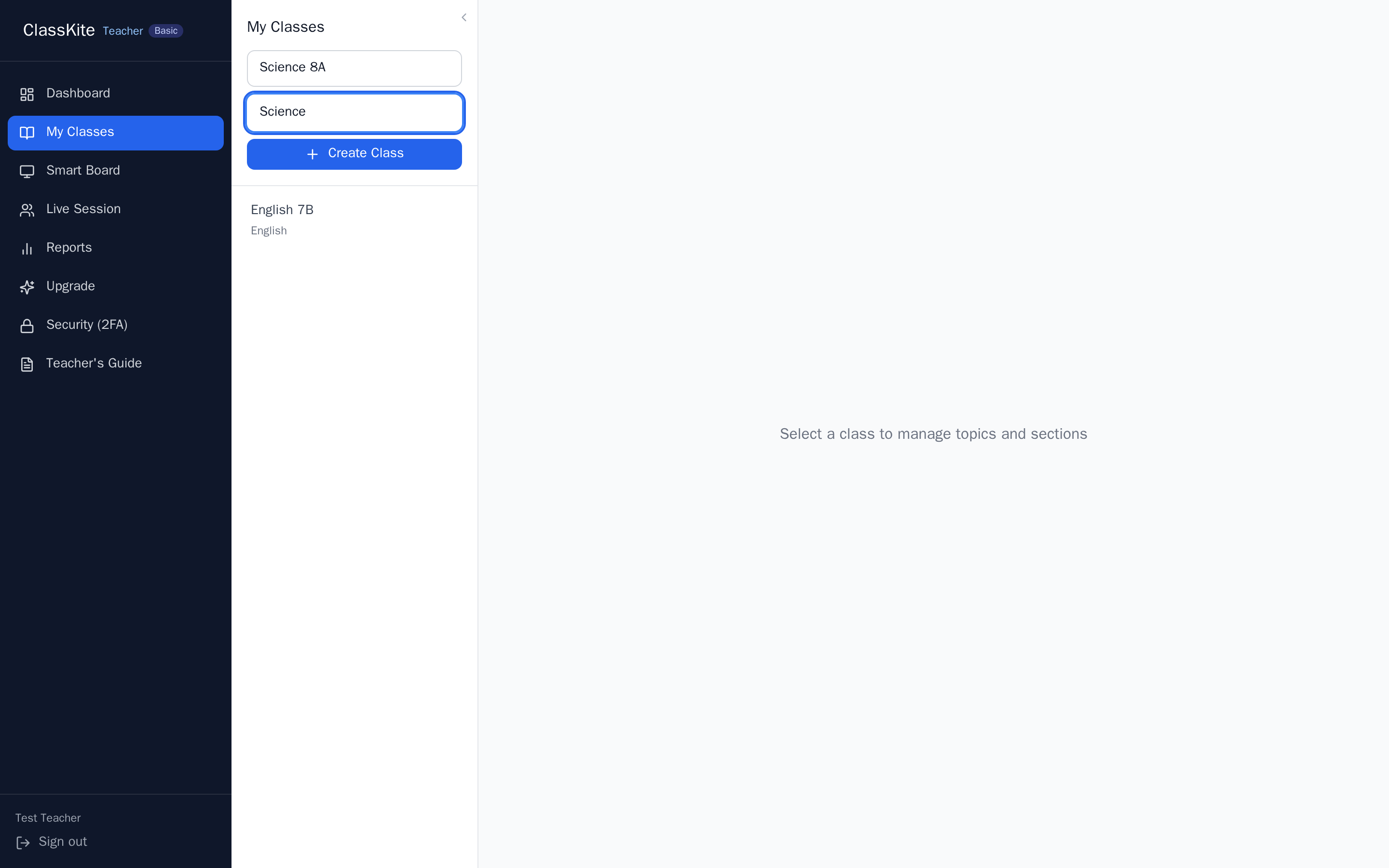
Tip. Write the join code on the board at the start of the first lesson - the whole class can enrol themselves in under a minute.
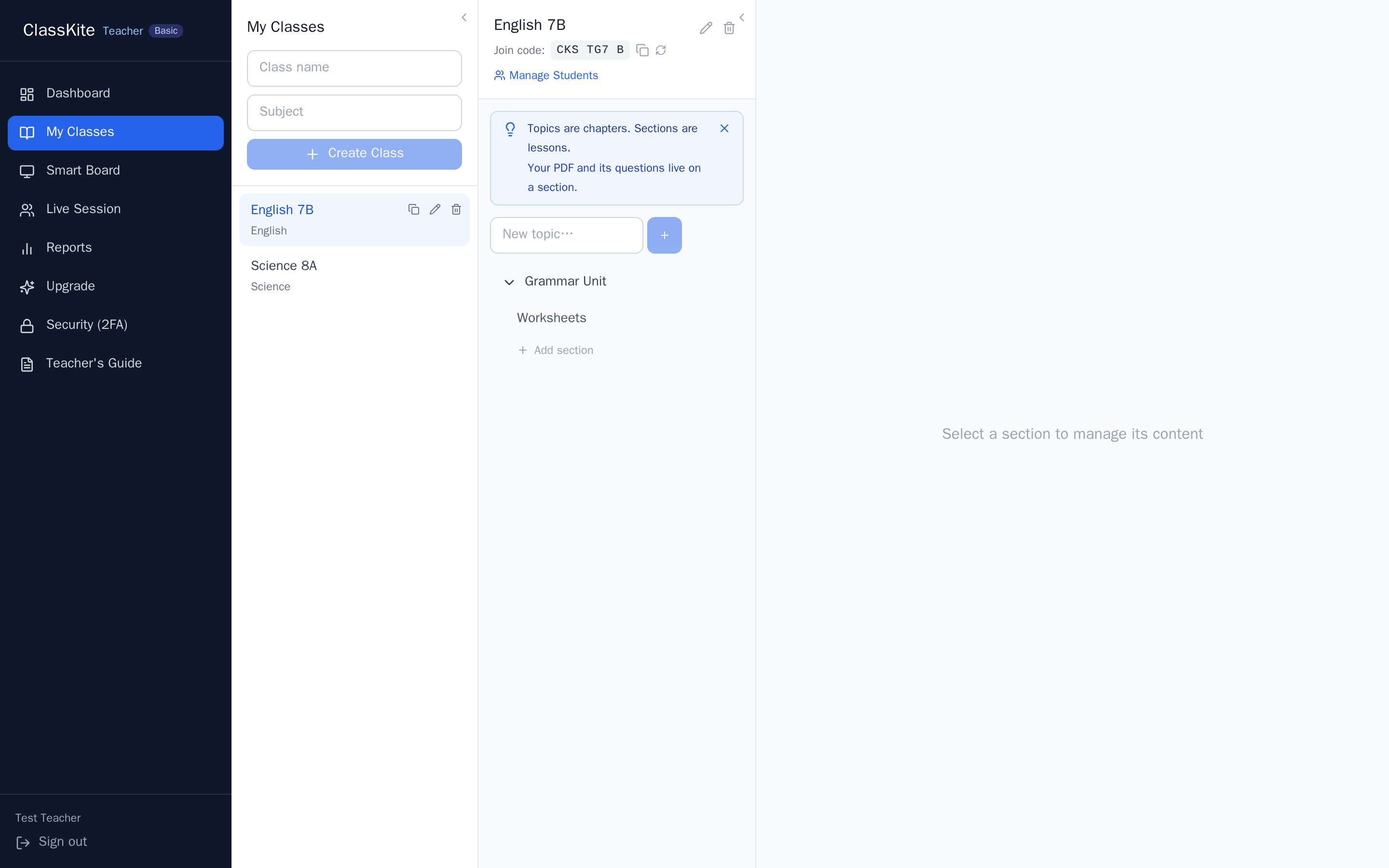
2. Find the class join code
Select the class to open it. Its join code is shown in the class header - this short code is what students use to enrol themselves. Use the icons next to it to copy it, print it as a handout, or regenerate it if it leaks outside your class.
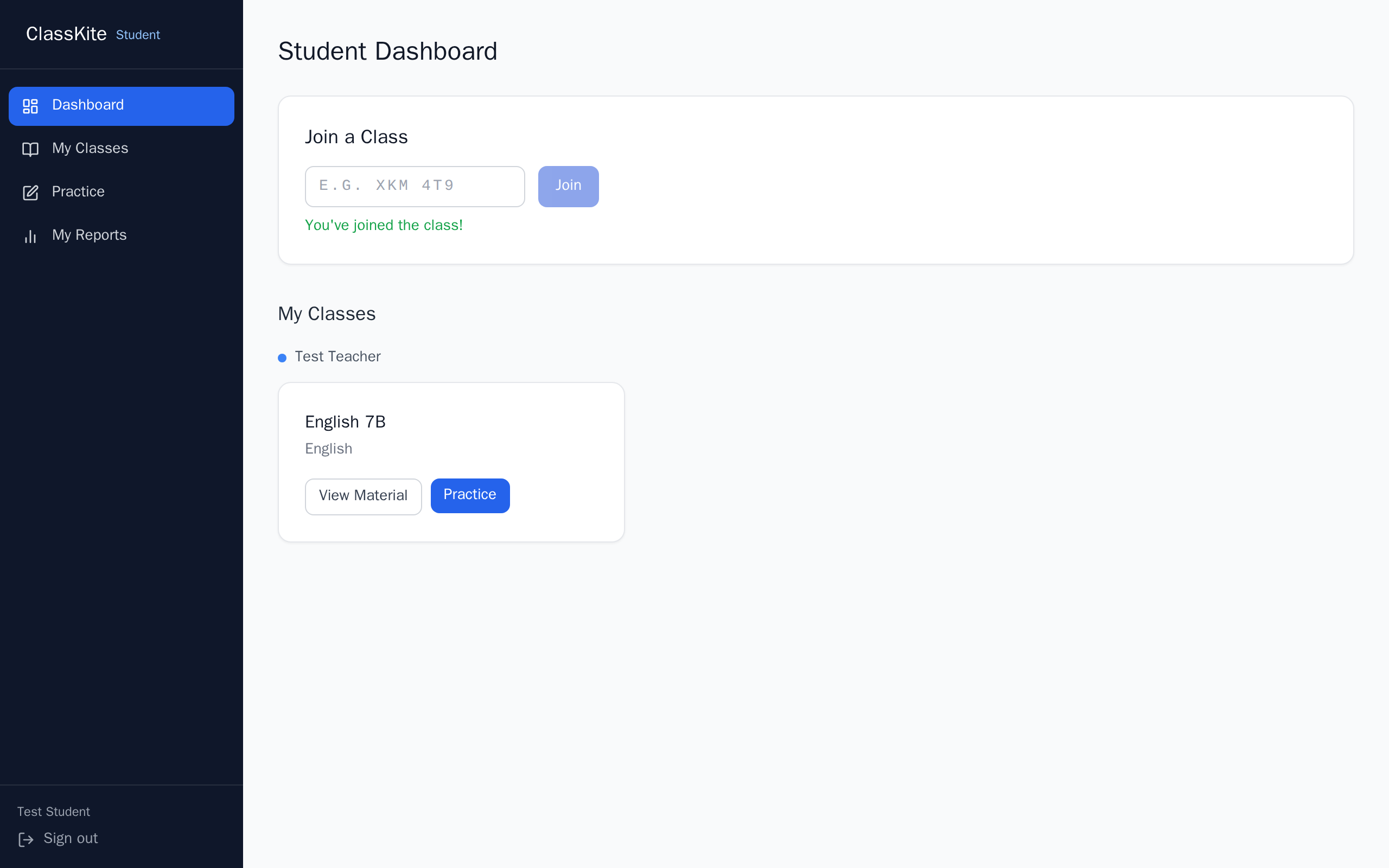
3. Students join with the code
Students sign in with their own accounts and enter the code in the “Class join code” box on their dashboard. They are enrolled instantly and the class appears on their dashboard; you will see them in the Students tab of your class, where you can also add students by hand or import a whole list from a spreadsheet.
Section 1: Importing Question Banks
Start the lesson by building its questions. ClassKite's question-bank template is written so an AI assistant can fill it in for you from your own lesson material. Download the template first: open your section's Questions tab and press Download Template. The Excel file carries example questions, a math variant, and an Instructions sheet covering all six question types.
1. Give the AI your material and the template
Upload both your PDF and the Question Bank Template to ChatGPT, then use the following prompt and customize it based on your preferences:
I'm uploading the ClassKite Question Bank Template along with the lesson material PDF.
Read the "Instructions" sheet in the Excel template carefully and follow all instructions exactly.
Generate [a similar number of science] questions based on [pages X-Y of the uploaded PDF] at a [similar] difficulty level.
Use a variety of the 6 supported question types defined in the Instructions sheet.
Important: For math questions, the JUMBLED_SENTENCE question type is NOT allowed.
Add all generated questions only below the separator row in the template. Do not modify, delete, reorder, or reformat any existing content, sheets, headers, examples, instructions, or formatting.
Return the completed Excel file ready for use in ClassKite.
Tip. The bracketed parts are yours to change: the subject and number of questions, the pages of your PDF to draw from, and the difficulty level.
2. Import your completed Question Bank Template into your lesson.
Back in the Questions tab, press Upload Question Bank and pick the file the AI returned. Valid rows are imported into the lesson straight away.
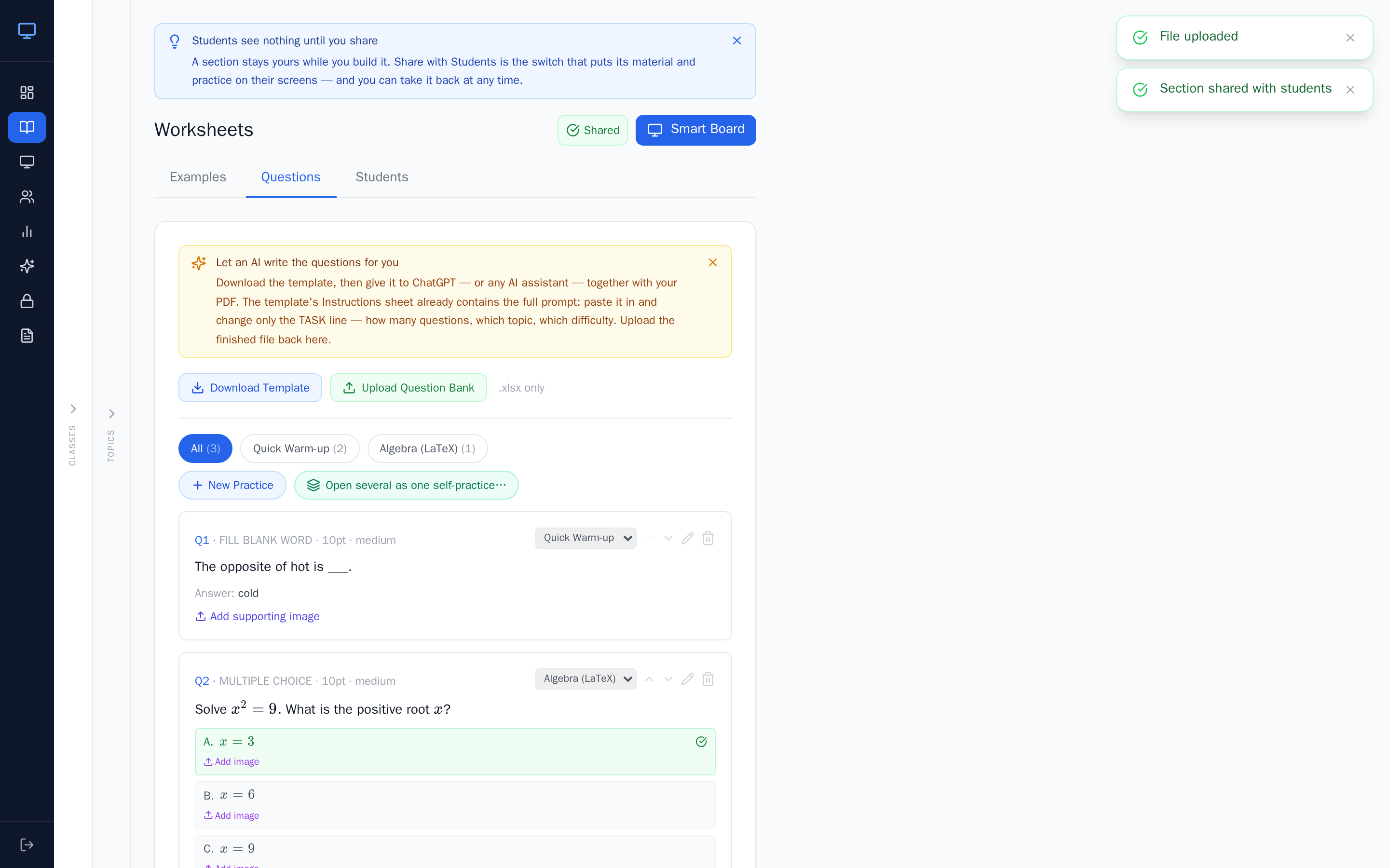
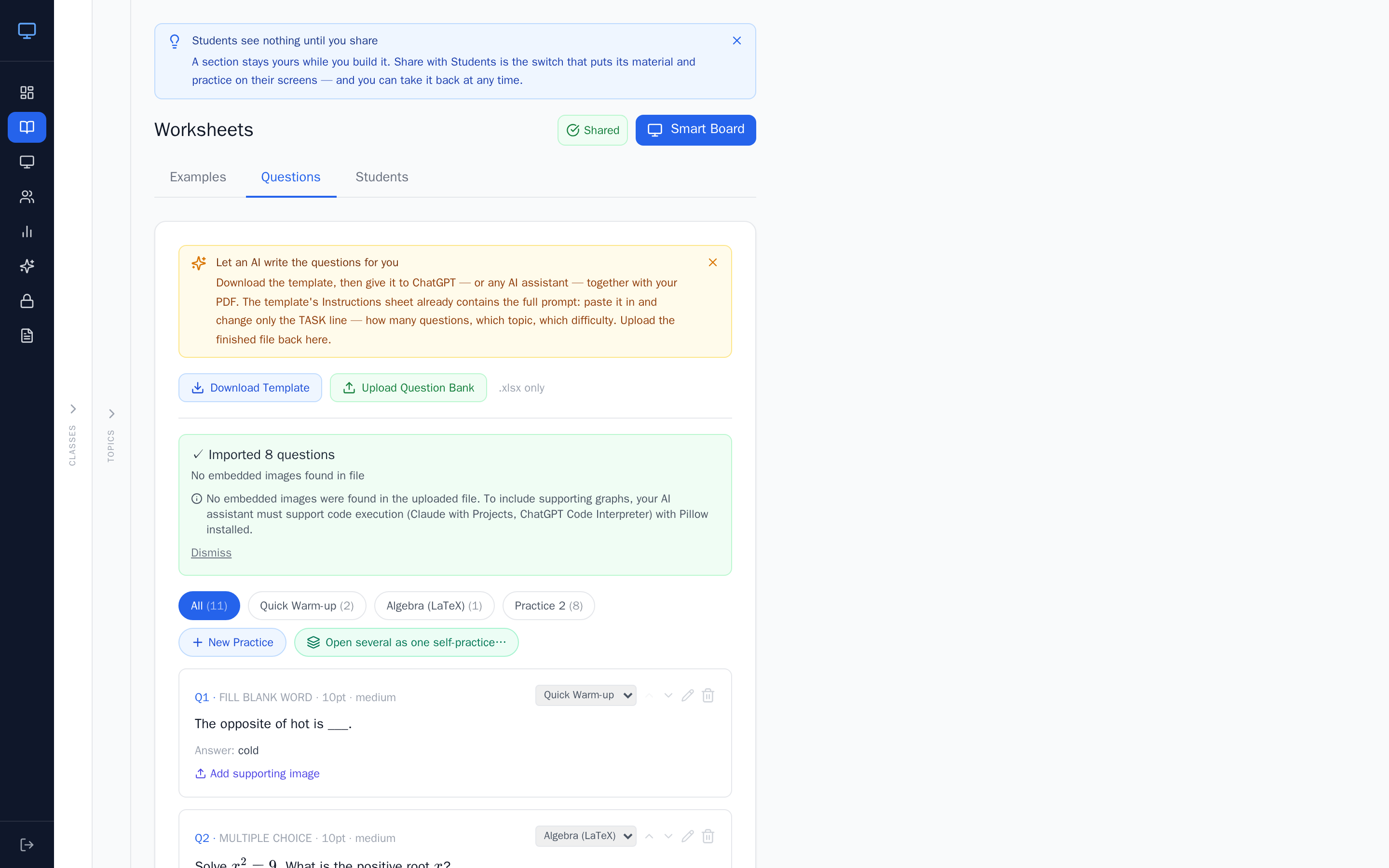
3. Organize the imported questions into separate practice activities for each concept.
For best results, include only 2-5 questions in each practice. One practice per concept is what makes the teaching cycle in Section 2 work: you explain a concept, then run the short practice that belongs to it.
4. Avoid adding too many questions to a single concept practice.
A long practice stops being a quick check of one idea. Keep each practice short and focused so the class can finish it while the concept is still fresh, and so you can see who has understood it before you move on.
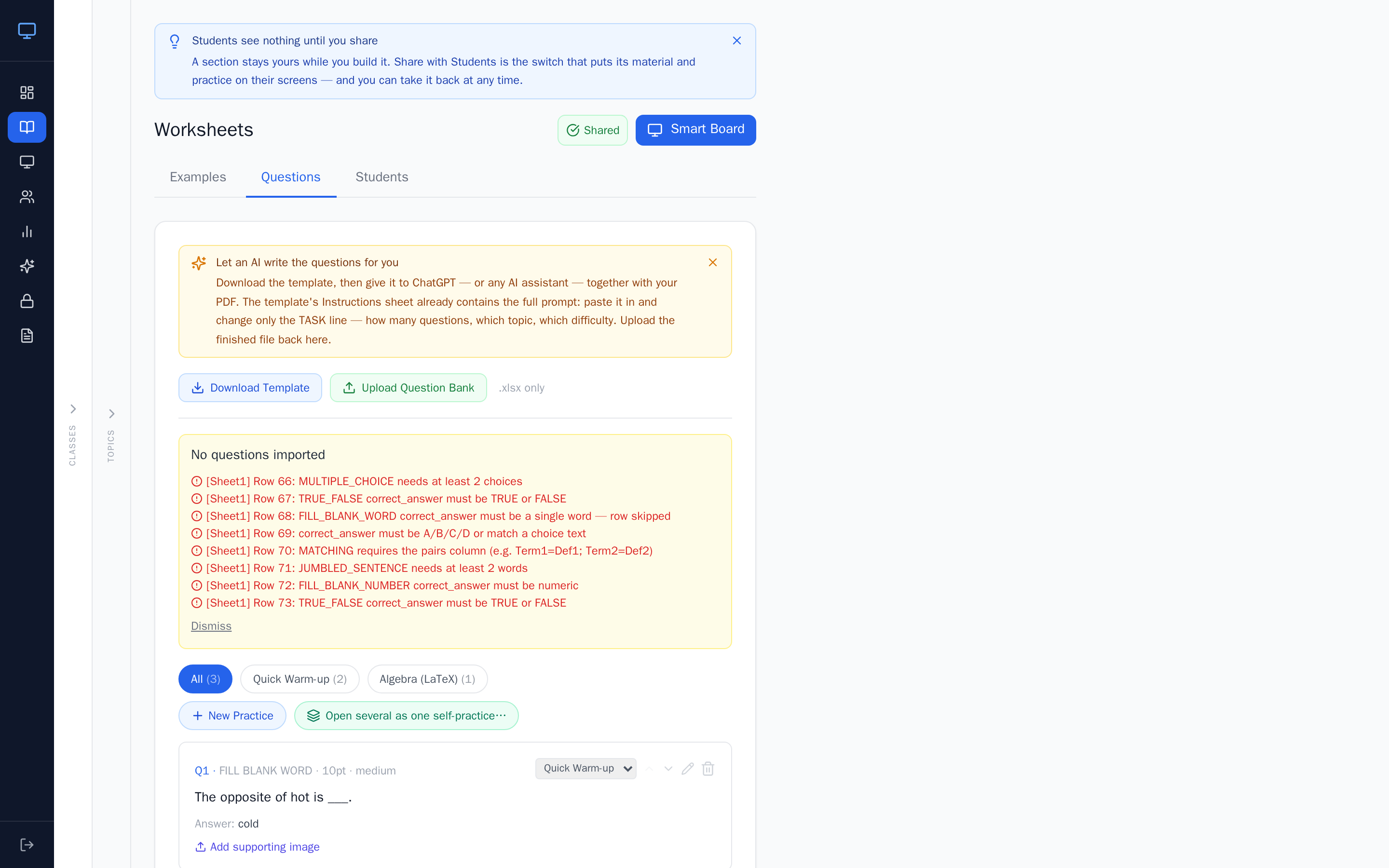
5. Fix a rejected file and re-import it
Sometimes, the import may return invalid or problematic rows. If this happens, copy the appeared error messages and paste them into ChatGPT or your preferred AI agent, then ask it to fix the Excel file based on those errors. Import the corrected file the same way - valid rows from the first attempt are already in, and the messages name the row and the reason, so the assistant has everything it needs to repair it.
Section 2: Smart Board Process
This is the cycle the whole lesson runs on: explain one concept, launch that concept's practice, monitor the Live Session, then return to the Smart Board for the next concept. One concept at a time is the point - each practice checks the idea you have just finished explaining, while it is still fresh.
Explain concept → Start practice → Monitor Live Session → All students green → Next concept
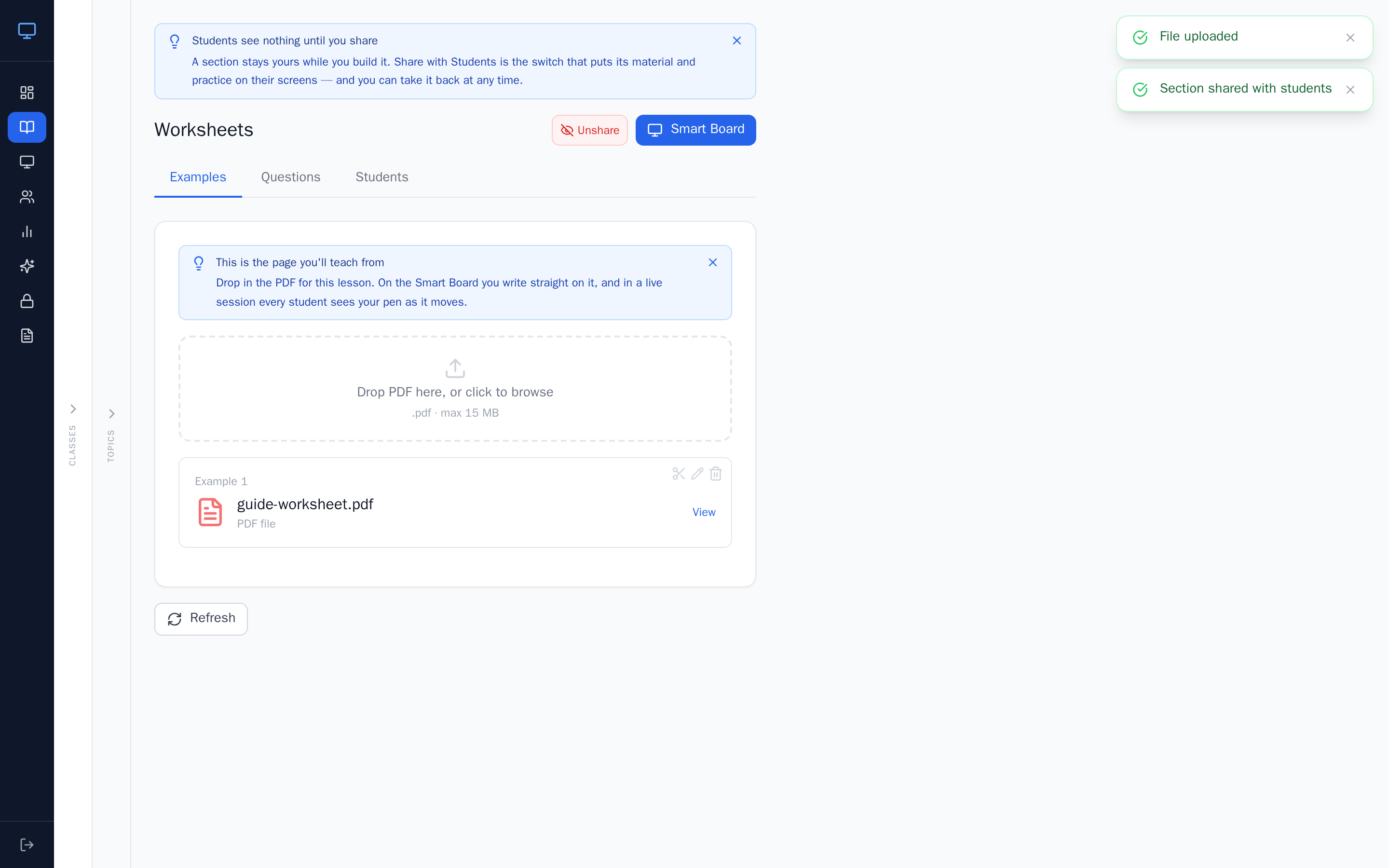
Your material has to be in the section first: inside your class, pick a topic and section, drop a PDF onto the upload zone in the Examples tab, and press Share with Students when the class is ready to see it.
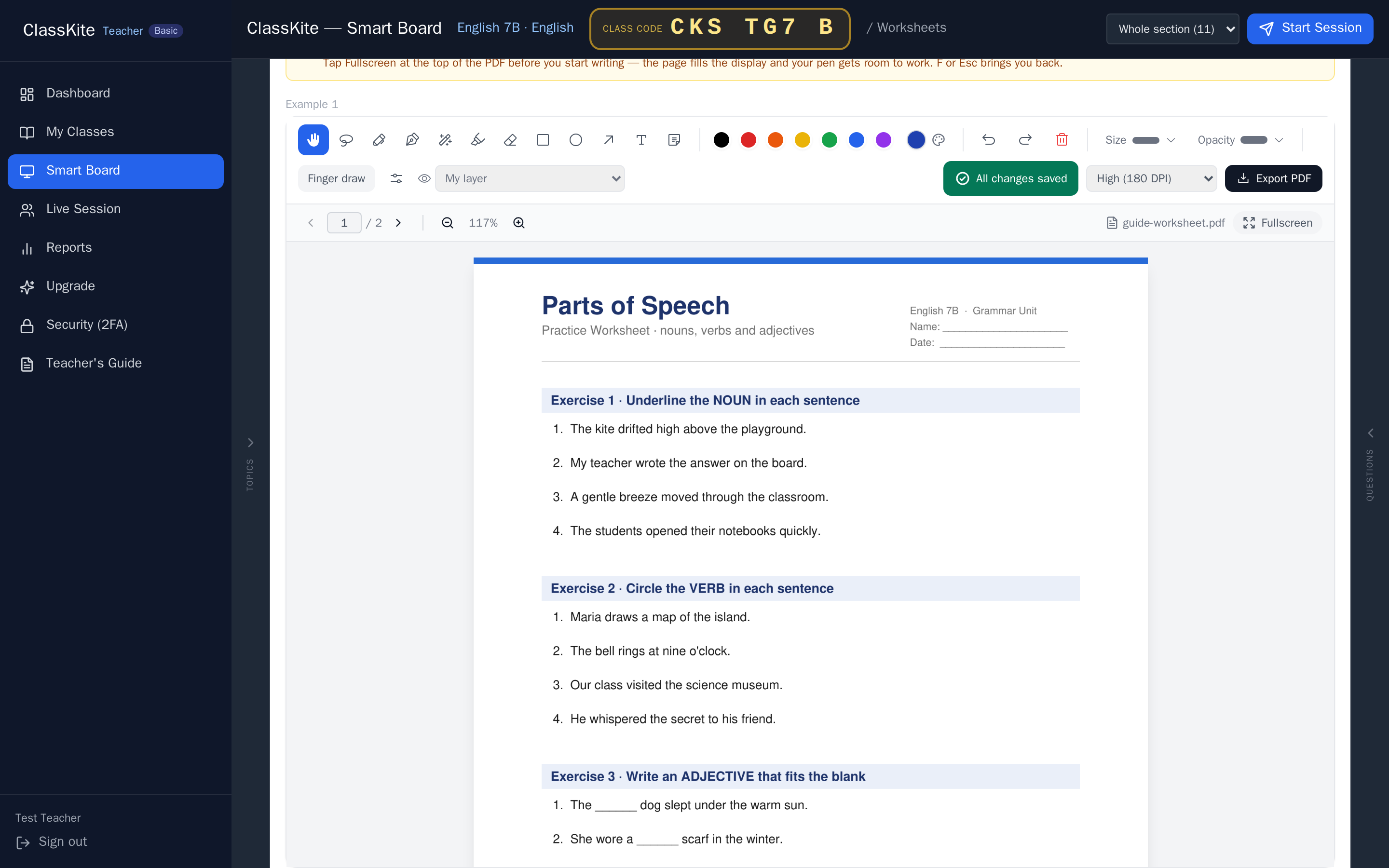
1. Select your “Class”, “Topic” and “Section” to start explanation and annotation on the “Smart Board”.
Open Smart Board from the left navigation and choose them in that order. Your material loads full-size with the annotation toolbar - ready for the projector or an interactive display.
2. Click “Fullscreen”, then annotate and explain in Fullscreen view
First, click the “Fullscreen” button, then begin annotating and explaining your lesson in Fullscreen view. Present one concept at a time, and after covering each concept, start a practice activity to check your students' understanding. Pick the pen and write directly on the page - underline, circle answers, tick correct work. Your ink saves automatically in the background and is still there when you come back to the page.
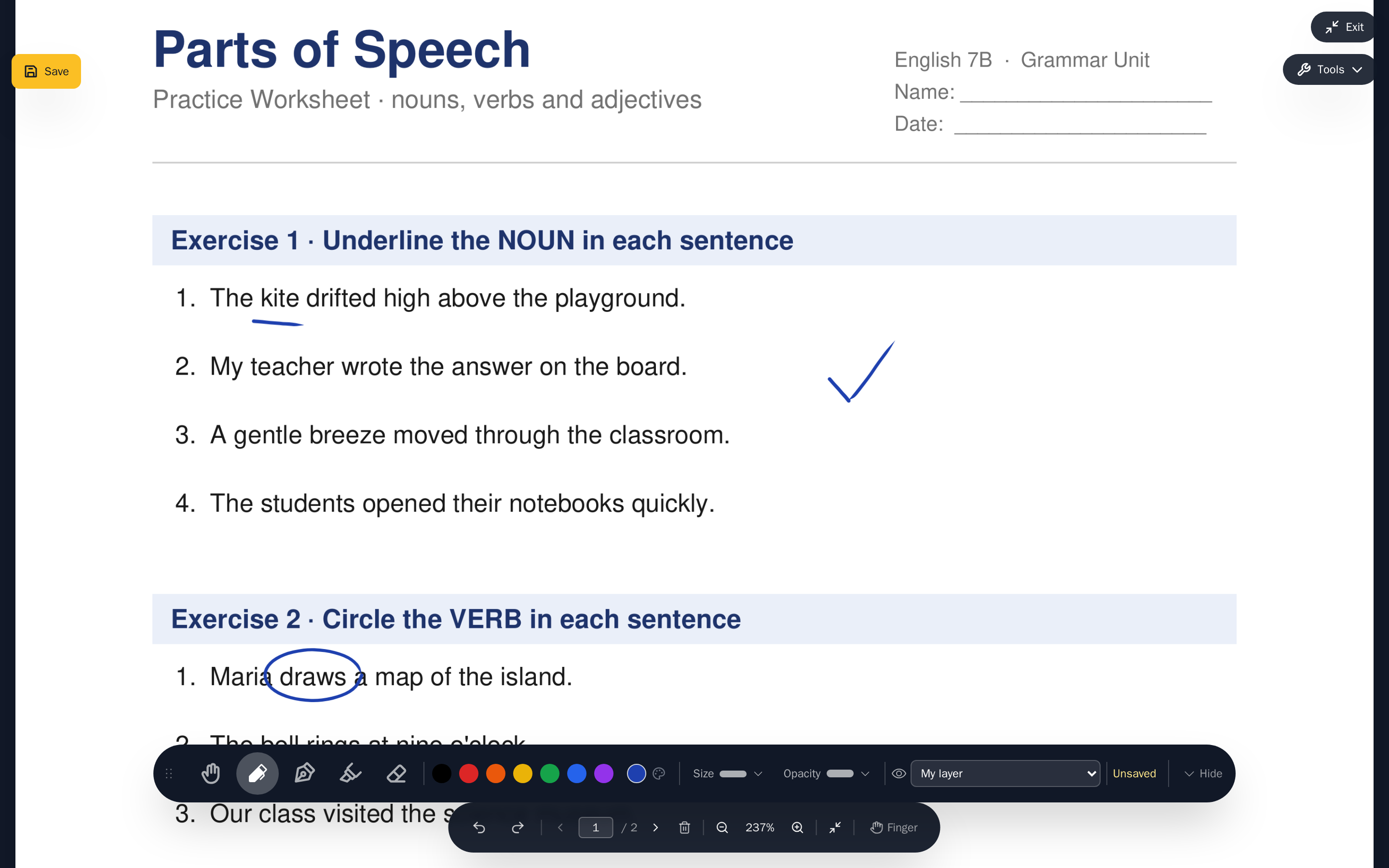
Tip. Fullscreen first, then write. Entering fullscreen re-fits the page, so it is the cleanest moment to switch - and it gives the page the whole display before your pen gets to work.
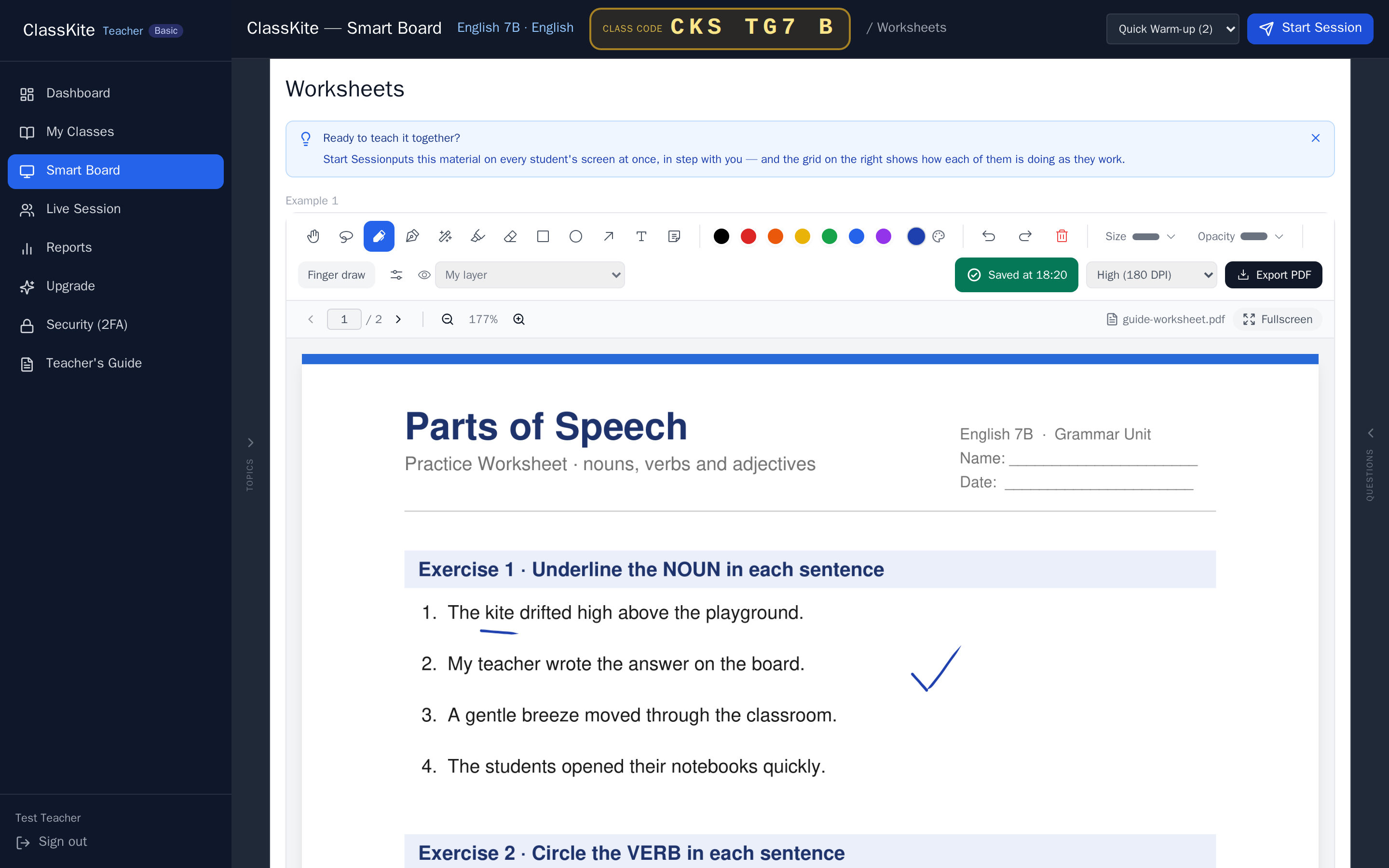
3. Select the practice for the concept you just explained
After explaining a concept on the smart board, select the relevant practice activity here to check your students' understanding and identify and address any learning gaps. The picker sits in the board's own header, next to Start Session: choose the practice that matches the concept you have just explained - its question count is shown beside the name - then press Start Session to put it on every student's screen.
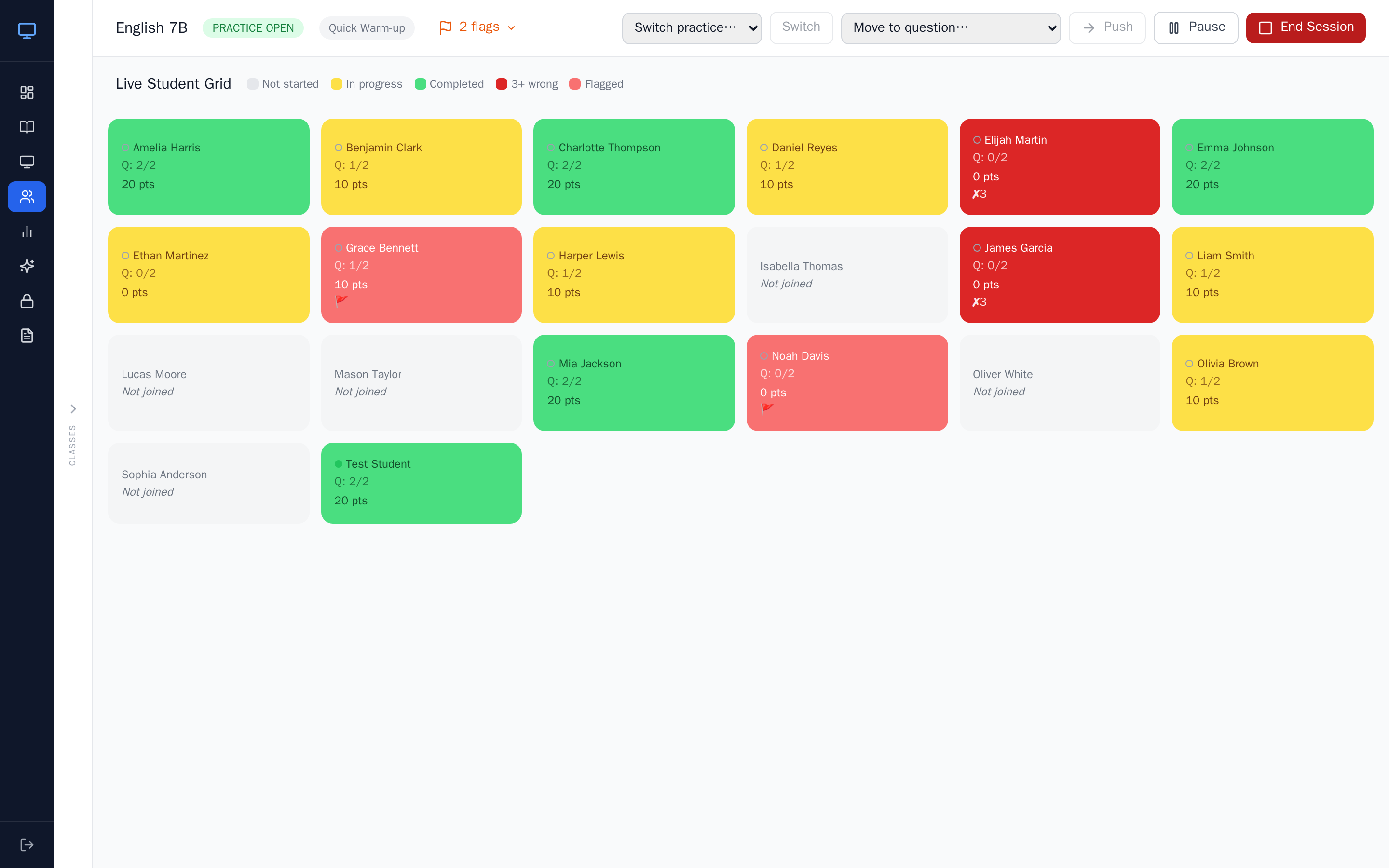
4. Once the session starts, go to “Live Session” to monitor your students' practice progress in real-time.
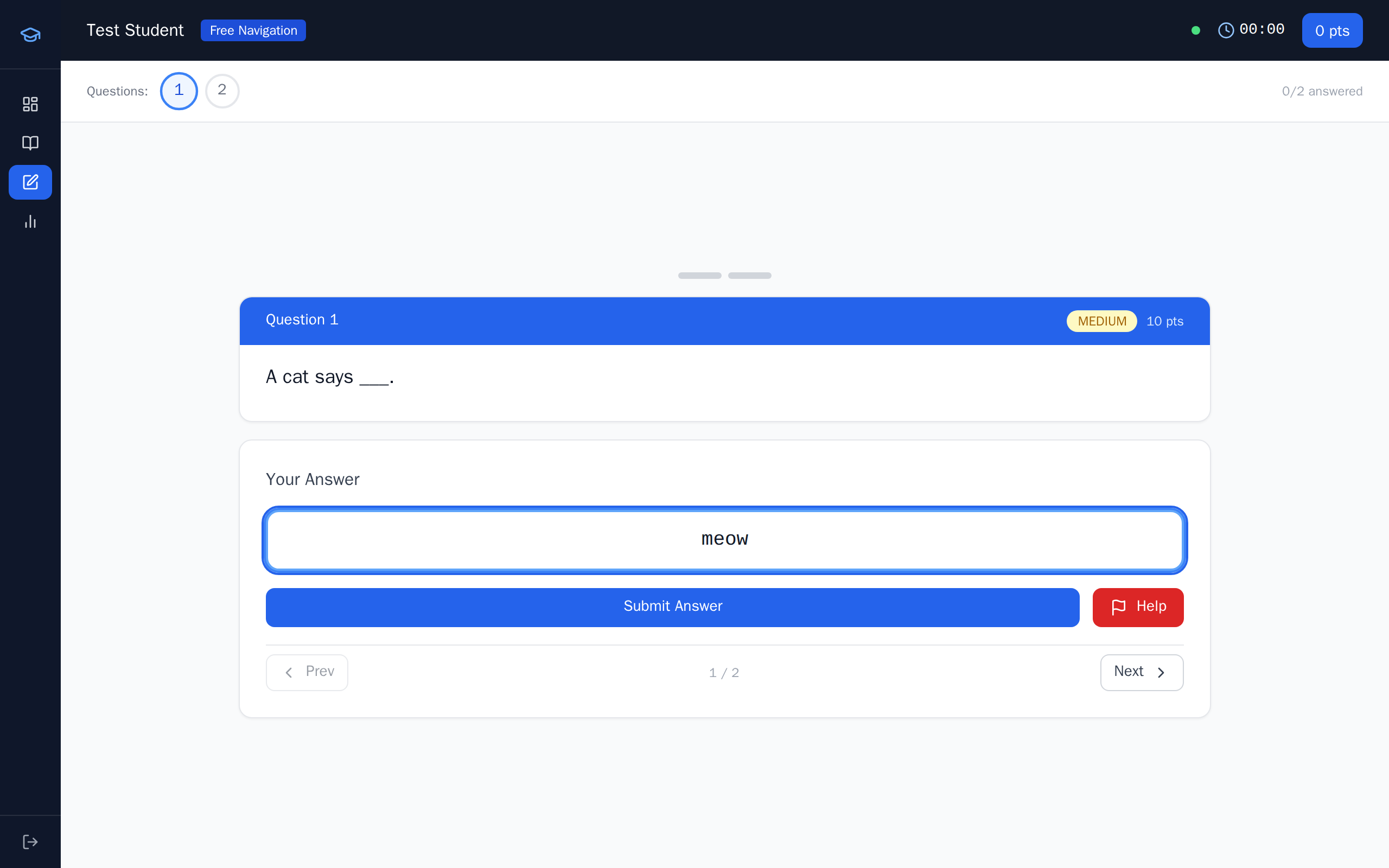
The practice appears on every enrolled student's device the moment the session starts. They answer each question and get instant feedback, while your Live Student Grid fills in as they join and work.
5. What each student status color means in the “Live Session” view
Green is a student who has completed the practice. Yellow is a student still working through it. Red is a student who has answered the same question wrongly several times - that is the one to go to first. Grey is a student who has not started, which usually means they have not joined yet. A flag is a raised hand: a student asking for you directly.
Section 3: Live Session Progress
While the practice runs, your job is the same three things: watch progress, support the students who need help, and wait until all students are green before you end the session and continue teaching.
1. Monitor your students' progress and provide support when needed
Help everyone complete their practice on time without delays. The grid tells you who needs you before they ask: red is a student stuck repeating a question, a flag is a student asking for help, and grey this far into a practice is a student who never joined.
Tip. Keep the grid on your screen, not the projector - it is for you, and it shows you exactly who needs help before they put a hand up.
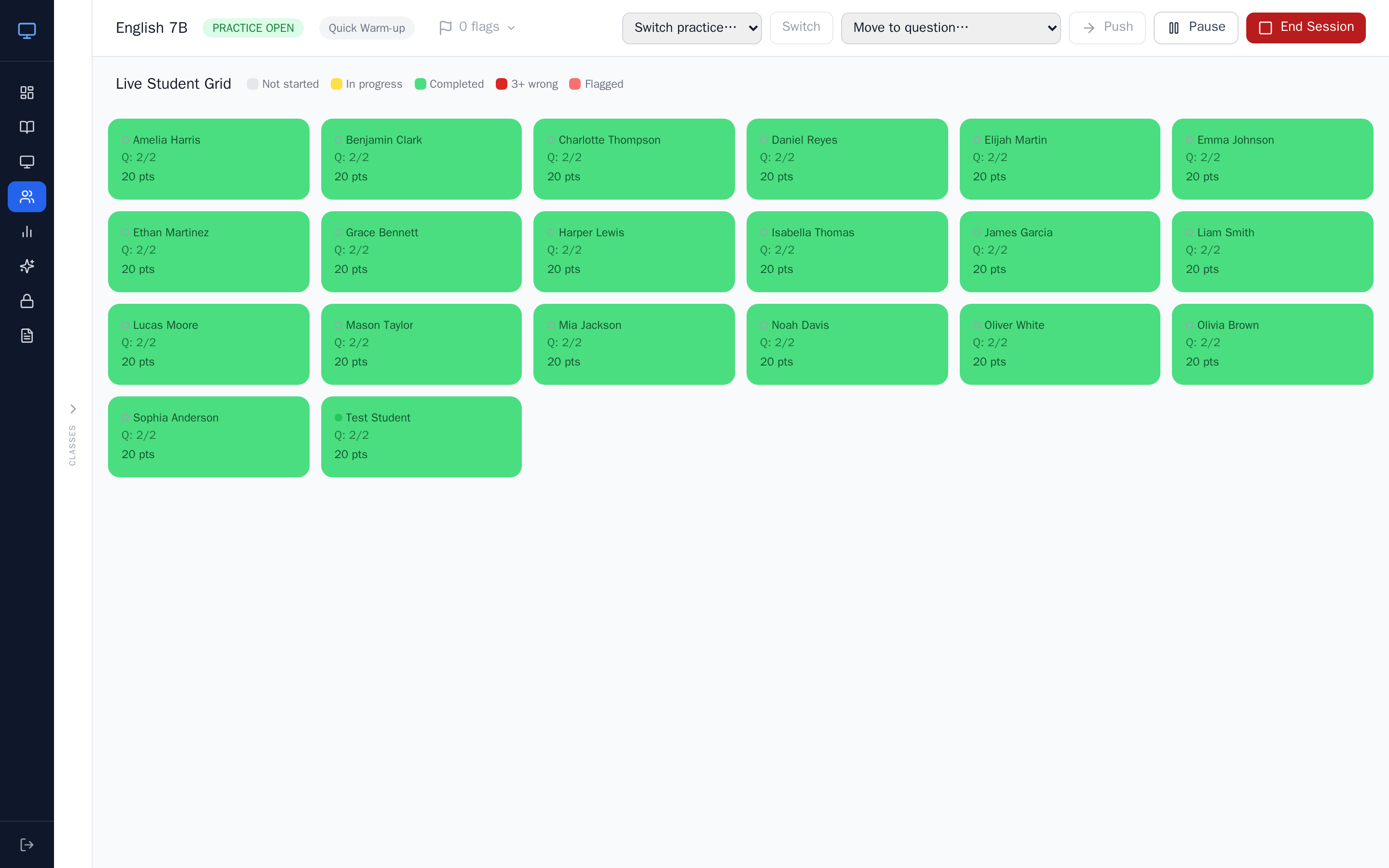
2. Once all students are in green, end the session and start the next concept
End the current Live Session, return to the Smart Board to explain the next concept, and repeat the cycle. A screen of all green is the signal that the concept has landed: no yellow means nobody is still working, no red means nobody is stuck, no grey means every student took part, and no flags means every request for help has been dealt with.
Explain concept → Start practice → Monitor Live Session → All students green → Next concept
Section 4: Reports
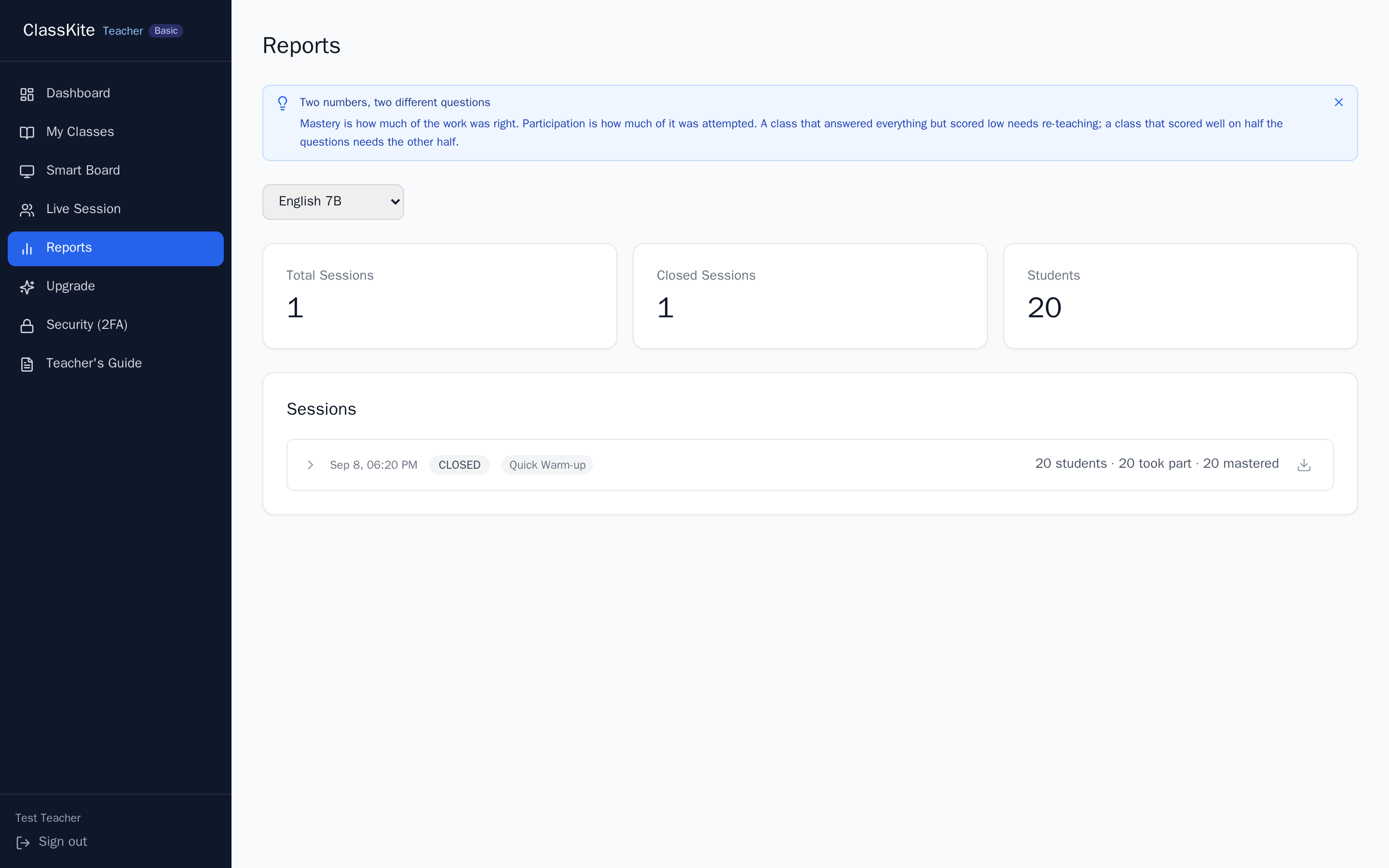
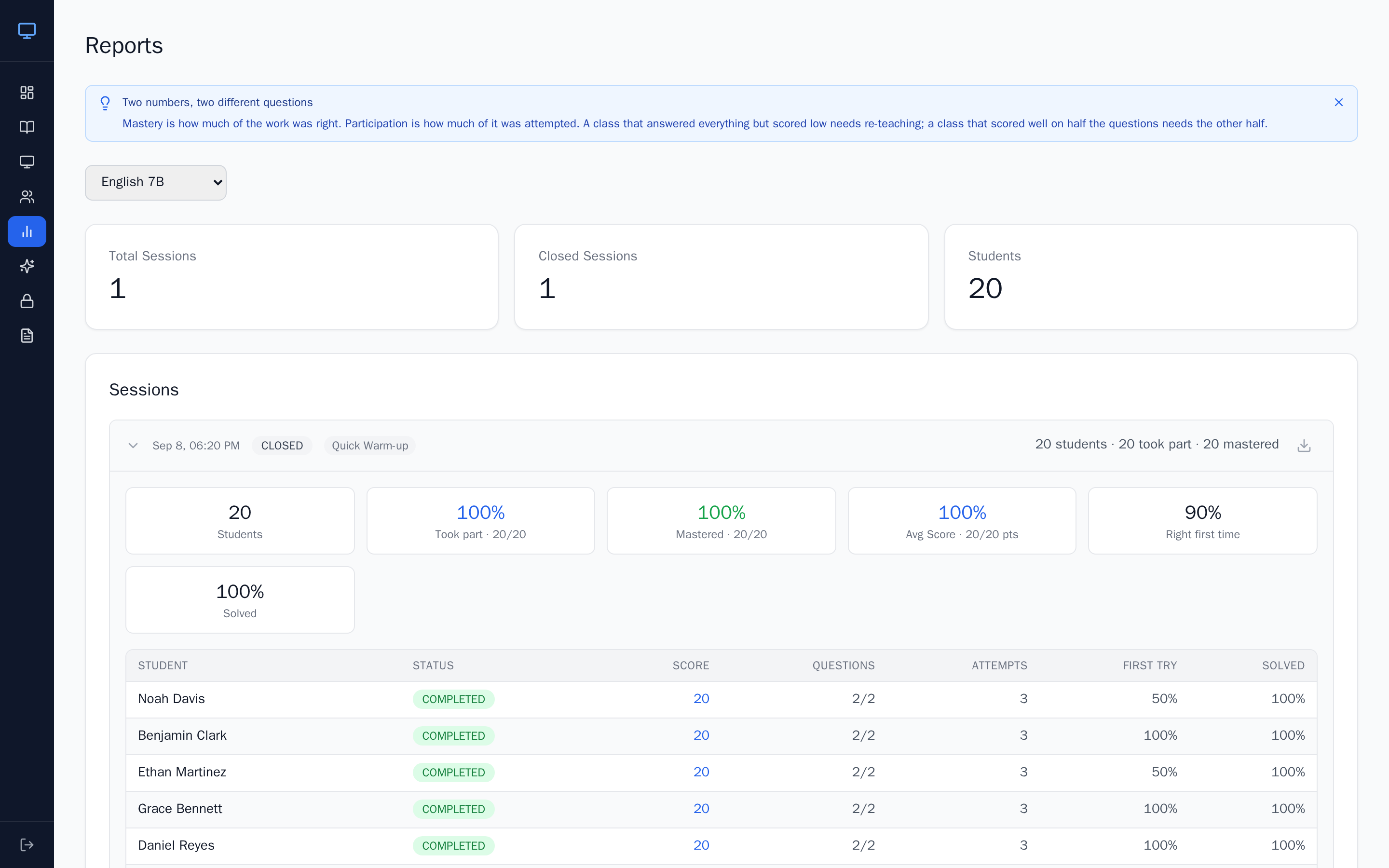
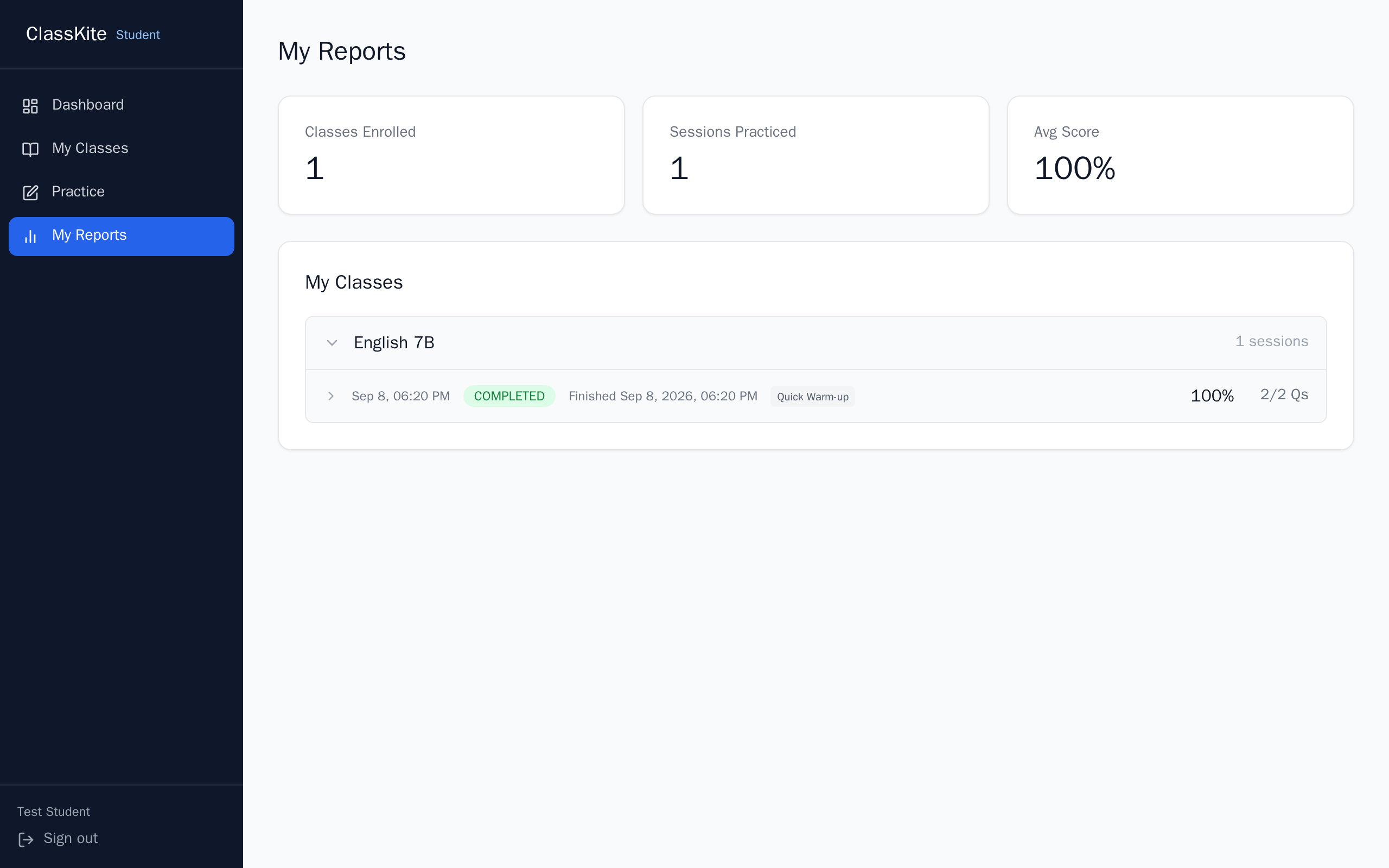
All students' practice history will be available here for future reference. Every session you run is kept, so the record builds up over the term without you doing anything to maintain it.
1. Open the class's session list
Go to Reports in the left navigation and select the class. Each live session you have run is listed with its date and status. Expand one to see the full breakdown: every participating student with their score and their progress through the questions - the after-class view of what the live grid showed you during the lesson.
Tip. Reviewing the session report right after class takes two minutes and tells you exactly what to reteach tomorrow.
You're ready
That's the cycle: questions an AI assistant wrote from your own material, one concept explained at a time on the Smart Board, its short practice watched in the Live Session until every student is green, and then the next concept - with a permanent record in Reports afterwards. Everything you saw in this guide was captured from the real app, so your screen will match.
Quick reference
Classes — create classes, manage the roster, upload material, import question banks
Smart Board — explain one concept at a time, in Fullscreen, with live ink
Live Session — run that concept's practice and watch the Live Student Grid
Reports — every student's practice history, kept for future reference