See every student's progress: in class, at home and in every quiz
Teach from your own PDFs, run practice that marks itself while you watch, set the same practice for home, hold a quiz under quiz conditions, and read what each student did. One cycle, one place.
One teaching cycle, five steps
The same questions run live in the lesson, at home and as a quiz, and every one of those sessions lands in the same reports.
- PrepareBuild the lesson from the PDFs and questions you already have.
- In classTeach on the board, run live practice and see every student as they answer.
- At homeReopen the same practice for students to work through in their own time.
- QuizzesRun a one-attempt quiz under quiz conditions and release the results yourself.
- ProgressRead what each student did, session by session, and decide what comes next.
Prepare
Start from what you already teach with
Nothing has to be rebuilt. Your PDFs become the lesson, and your questions become practice you can run again and again.
Your own material
Upload your PDFs, including slide decks exported as PDF. They open exactly as they print.
Six auto-marked question types
Multiple choice, true/false, fill-in-the-blank (word or number), matching and jumbled sentence, with LaTeX for maths and an image where a question needs one.
Three ways to write questions
Type them, import the Excel template, or, on Teacher Plus and the School plan, have the AI draft multiple choice and fill-in-the-blank for you to review. Nothing reaches a student until you approve it.
Classes that stay organised
A class holds topics, a topic holds sections, a section holds its PDFs and practices. Students join with a class code or you import a class list, and you can copy a class you have already built.
In class
Know who needs you while the lesson is still running
Students answer on their own devices, every answer is marked as it is submitted, and you see the whole class on one screen.
Teach on the board
Open your PDF on the classroom display and write on it. Students' screens follow the page you are on, and your strokes appear on their devices as you write.
Start a live practice
Pick the practice and tick the options that suit the lesson: Free navigation, Shuffle, Require full screen or SBQ mode.
Watch the grid fill in
Each answer is marked as it is submitted. The Live Student Grid shows who has finished, who is stuck and who has asked for help.
Step in while it matters
Pause the class, move everyone to one question, model it on the board, or open one student's layer and write feedback beside their working.
What the Live Student Grid shows
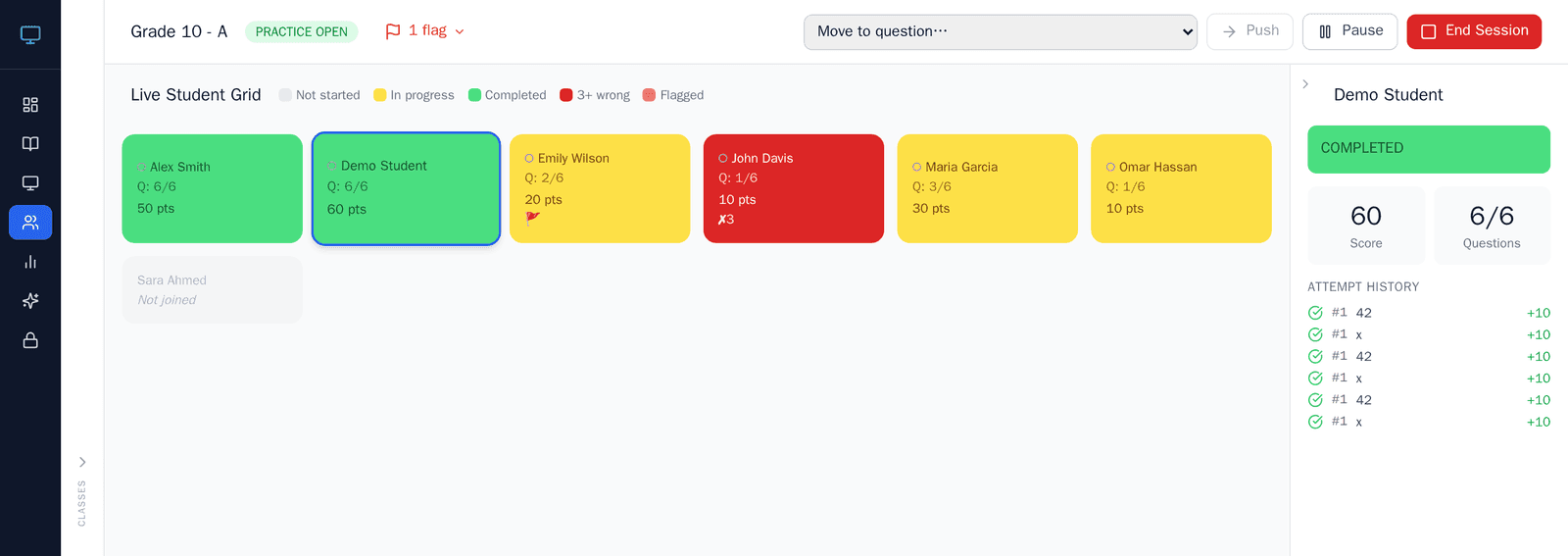
Status
Not started, in progress or completed, for every student at once, including the ones who have not joined yet.
Struggling
A card turns red when a student has got the question in front of them wrong three times or more.
Help flag
A student taps once to ask for help; the flag appears on their card and in your list, without them calling out.
Presence
Active, Away, Offline or Left, with what the device observed: the page was hidden, focus left the page, or they left required full screen.
Progress and score
Questions completed and the running score on every card.
Attempt history
Click a student to see each answer they gave, in order, right or wrong, with the points.
At home
The same practice, in the student's own time
A practice you ran in class can be reopened for self-practice with one click, and what students do with it comes back to you.
You open it
Click "Open for self-practice" on a practice, or tick several and open them as one set with a name students will recognise. Nothing opens by itself, and you close it when you are ready.
Students find it on their dashboard
It appears under "Open for self-practice" with the section, the number of questions and whether they have finished it. They work in the browser on their own device.
They see how they did as they go
Every answer is marked at once. A wrong answer is tried again before moving on, and a finished practice can be retaken as often as they like.
The lesson is still there
In any section you have shared, students can reopen the lesson material and read the notes you wrote on it.
It comes back to you as a report
Each self-practice session gets its own report, listed beside your live lessons and labelled Self-practice, so homework and classwork are read together.
Quizzes
A quiz under quiz conditions, released when you decide
ClassKite's quiz is SBQ mode, short for School Based Quiz. Tick it when you start a live session and these conditions apply.
| Condition | What it controls | Why it matters |
|---|---|---|
| SBQ mode | Each student answers every question once, in order, and cannot go back. They see "Answer recorded" instead of right or wrong, and help requests and retakes are switched off. | Every answer is the student's own first attempt, so the score means the same for everyone. |
| Shuffle | Each student gets their own order of questions and of the options in multiple-choice questions. Ticked for you in SBQ mode. | A neighbour's screen shows a different question. |
| Require full screen | Asks students to stay in full screen; leaving it shows them as Away on your grid. Ticked for you in SBQ mode, and you can untick it or switch it during the session. iPads and iPhones are never asked, and you can exempt any student. | Opening another window becomes something you can see. |
| Copying turned off | Copying, cutting and dragging the question text are blocked. Answer boxes work as normal, and text can still be selected for screen readers. | A question cannot simply be pasted into another app. |
| Flagged answers | An answer is flagged when the student was away from the page for 5 seconds or more in total, or tried to copy the question, while it was on screen. You see the count on their card, the detail when you open the student, and an "After leaving" column in the report and its CSV. | You know which answers to ask about. A flag is a reason to talk with the student, not proof. |
| Students are told | The quiz shows a note: "Quiz conditions: your teacher can see if you leave this page or copy a question." Students never see the flags themselves. | The conditions deter before they detect. |
| Require Safe Exam Browser (iPads) | Students open the quiz in the free Safe Exam Browser app, which locks the iPad to it: no app switching, Home screen, Control Center or screenshots until you end the session. You can let one student out with an exit code, or let a student in without it. | On iPads, the device itself is held to the quiz. |
| Release results | Results stay hidden from students, and scores stay hidden on your live grid, until you release them after the session has closed. You can hide them again. | Nobody passes answers to a classmate who is still working. |
What a ClassKite quiz does not do
- There is no timer and no scheduled opening or closing time: a quiz runs while your live session is open, and you end it.
- There are no due dates or reminder emails.
- There is no webcam proctoring, and no website can block or detect a screenshot; only Safe Exam Browser on an iPad does.
- Safe Exam Browser is for iPads. Chromebooks and Android devices cannot run it, so those students are let in without it.
- There are no short-answer or essay questions, and no partial marks.
Live practice, self-practice and a quiz, side by side
One set of questions, three ways to run it. This is exactly how each one behaves.
| Live practice | Self-practice | SBQ quiz | |
|---|---|---|---|
| Where it runs | In the lesson, when you start it | Any time it is open, when the student chooses | In the lesson, when you start it |
| Answers per question | Try again until correct | Try again until correct | One answer, right or wrong |
| Moving between questions | Freely if you tick Free navigation; otherwise in order, and you can move the class | Freely | In order, no going back |
| Question and option order | Shuffled per student unless you untick Shuffle | Shuffled per student | Shuffled per student |
| What the student sees after answering | Right or wrong and the points, at once | Right or wrong and the points, at once | "Answer recorded" |
| Asking for help | One-tap help flag | Not available | Switched off |
| Retaking | The student can retake once finished | The student can retake any time it is open | Not available |
| When the student sees results | As they go | As they go | When you release them, after the session has closed |
| What you see while it runs | The Live Student Grid | Nothing live; the report afterwards | The Live Student Grid, with scores hidden until you release them |
| Full screen | Optional | Not available | Ticked for you; you can untick it |
| Quiz conditions and flagged answers | No | No | Yes |
| Safe Exam Browser on iPads | No | No | Optional |
| Times left and away counted | Yes | No | Yes |
| Report | Yes | Yes, labelled Self-practice | Yes, with Score % and After leaving |
Running all three is free on every plan, Teacher Basic included. Student names and scores on the Live Student Grid, attempt history, and the reports are part of class analytics, included with Teacher Plus and the School plan.
Progress
One picture of each student, from every session
Live practices, self-practice at home and quizzes all become sessions in the same reports, so classwork, homework and quiz results are read together.
Every session
How many students took part, the average score, how much the class got right first time and how much it solved in the end. Live practices, self-practice sessions and SBQ quizzes are each labelled.
Every student in a session
A row each: score, questions completed, attempts, right first time and solved. Students who never opened the practice are listed too. Live sessions add how often each student left or was away; SBQ quizzes show Score % and an After leaving count.
The class over time
Totals for the class, a score-trend chart from one session to the next, and a log of every session, newest first.
Exports
Download one session as a CSV file, or a whole class as an Excel workbook for the dates and practice types you choose.
What students see
Their own results for each session in their Reports, with their own left and away counts. SBQ results show as pending until you release them.
What the reports do not do
- Reports are per session, per student and per class. There is no breakdown of the class question by question, and no tracking by skill or learning objective.
- There is no gradebook and no automated analysis of learning gaps: ClassKite shows the figures, and you decide what they mean.
- School admins see an overview of teachers, students, classes and live sessions, not students' scores.
From what you see to what you do next
You see: several cards turn red on the same question
Pause the class, model that step on the Smart Board, then let everyone carry on.
You see: one student raises a help flag or keeps getting it wrong
Open their attempt history to see what they tried, or open their layer and write the correction beside their working.
You see: the report shows little was right first time
Reopen that practice for self-practice, so the class can try it again at home with instant feedback.
You see: some students never opened the homework
They are listed in the report by name, so you know who to speak to before the lesson starts.
You see: a quiz answer is flagged
Talk with the student first, then release the results when you are ready.
You see: the score trend is slipping
Regroup the questions from that section into a new practice and revisit the topic.
See it before you sign up
- Try the annotator Write on a sample PDF in your browser. No account, nothing to install.
- Watch the tutorial One lesson from start to finish on real screens: questions, Smart Board, live session, report.
- Read the Teacher's Guide The whole teaching cycle step by step, with screenshots.
- See what each plan includes Teacher Basic is free; the pricing page shows the current limits and what Teacher Plus adds.
ClassKite runs in the browser on classroom displays, laptops and tablets, with nothing to install. Students join free with a class code. Rolling it out across a department? See ClassKite for schools.
Questions teachers ask first
What can I do during a live lesson?
Teach from your own PDF on the classroom display with students' screens following your page, start a live practice that marks each answer as it is submitted, watch the Live Student Grid, pause the class or move everyone to one question, and write feedback on an individual student's work.
What does the Live Student Grid show me?
For every student at once: not started, in progress or completed; a struggling signal after three wrong answers on the same question; help flags; whether they are Active, Away, Offline or have Left, and why; questions completed and score. Click a student for their attempt history. Names, scores and attempt history are part of Teacher Plus and the School plan.
Can students practise independently at home?
Yes. Open any practice for self-practice, or several as one set. Students find it on their dashboard, answer on their own device with instant feedback, and can retake it. Each self-practice session comes back to you as its own report. There are no due dates: it stays open until you close it.
Can I run an exam, and which conditions can I set?
ClassKite's quiz is called SBQ mode (School Based Quiz). It gives one answer per question with no going back, shuffled order, results withheld until you release them, copying turned off, answers flagged after a student leaves the page, an optional full-screen requirement and, on iPads, Safe Exam Browser. There is no timer or scheduled window, and no webcam proctoring.
How do I track each student's progress?
Every session has a report with a row for each student: score, questions completed, attempts, right first time and solved. The class report adds a score-trend chart and a log of every session, and you can export a session to CSV or a class to Excel. Reports are part of Teacher Plus and the School plan.
How does it help me decide what to teach next?
During the lesson, the grid shows who is stuck so you can reteach on the board straight away. Afterwards, the report shows who finished, who never started and how much the class got right first time, and you can reopen the same practice for self-practice. ClassKite shows the figures; the teaching decision stays yours.
What question types are there?
Six, all marked automatically: multiple choice, true/false, fill-in-the-blank (word or number), matching and jumbled sentence. A blank takes one word or one number and is matched exactly (capitals don't matter). There are no short-answer, free-text or essay questions, and no partial marks.
What can I see before signing up?
You can try the PDF annotator in your browser without an account, watch the tutorial video, and read the Teacher's Guide. Teacher Basic is free, so you can also run a real practice with a class before deciding.
Run one practice with your class and see
Teacher Basic is free. Create a class, share the code, and start a live practice in your next lesson.